HEIC to STL: iPhone Photos Straight to a 3D Print
Drop the .heic file from your iPhone as it is. It is decoded in your browser and turned into a printable relief, lithophane or stamp in millimetres.
In short: To convert a HEIC photo to STL, drop the .heic file into the MeshShift image tool. You do not need to convert it to JPG first: the tool decodes HEIC (and HEIF) in your browser, then builds a 3D surface from the photo's brightness.
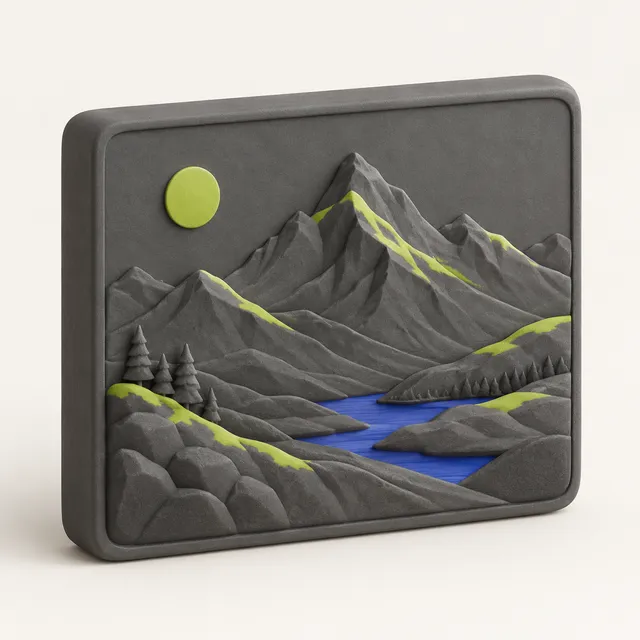
Choose relief for an embossed plaque, lithophane for a thin panel that shows the photo when lit from behind, or stamp for a raised two-level logo or text. Set the width in mm, the thickness range and smoothing, check the 3D preview with its real size, and download a closed, watertight STL. The photo is never uploaded and there is no account or watermark. HEIC is the default camera format on iPhones and many recent Android phones, so this is the shortest path from your camera roll to the printer. A photo becomes a height map, not a full figure; the AI photo to 3D tool builds a figure you can hold, with one model a day free, download included.
How to use the HEIC to STL tool
- Drop the .heic or .heif photo into the tool (AirDrop or Files on iPhone, or the export from Photos on a Mac).
- Choose relief, lithophane or stamp.
- Set the width in millimetres, the thickness range and smoothing.
- Check the 3D preview, size and print time.
- Download the STL and open it in your slicer.
Why HEIC files fail in most image to STL converters
HEIC (High Efficiency Image Container) stores the photo with HEVC compression. iPhones have used it as the default camera format since iOS 11, and many Android phones now offer it too. It is about half the size of a JPG of the same quality, but many web tools and older desktop programs cannot open it. You get an "unsupported file" error, or the upload silently does nothing.
The usual workaround is to convert the HEIC to JPG in another app and then upload the JPG somewhere else. That adds a second round of compression and, on many converter sites, sends your photo to a server twice. MeshShift decodes the HEIC in the same browser tab that builds the STL, so the photo stays on your device and goes through one step.
Getting HEIC photos off your iPhone without losing quality
- On the same iPhone, open meshshift.app in Safari and pick the photo from your library. iOS may hand the page a JPG copy; both work.
- AirDrop to a Mac keeps the original .heic file. Drag it into the tool.
- On Windows, the Photos export or iCloud for Windows keeps HEIC if "Keep originals" is selected.
- Avoid sending the photo through a messaging app first. Most of them recompress it heavily, and block artefacts print as a checkered texture.
Portrait-mode photos work as normal photos: the depth effect is not used, only the brightness of the image.
Settings that work for phone photos
- Crop to the subject before you start. The whole frame becomes the panel, and a 4:3 phone photo at 100 mm wide is 75 mm tall.
- For a lithophane, use 0.8 mm minimum and 3 mm maximum thickness and print in white PLA, standing up, at 100 % infill and 0.12 mm layers.
- For a relief plaque, use a 2 mm base and 2 to 3 mm of depth and print flat.
- Raise smoothing for photos taken in low light; night-mode noise turns into small bumps.
- Faces should fill at least a third of the frame, or features get too small to print at 100 mm.
When you want a 3D figure, not a flat print
A relief or lithophane always has a flat back. If the photo shows your pet, a child's toy or a person and you want something that stands on a shelf, the AI tool predicts the sides and back and builds one closed solid on a base at the height you choose. It also accepts HEIC directly. The first model each day is free, download included with no sign-up; after that each model is 10 credits, with one-time packs from $4.99 for three models.
Frequently asked questions
Do I need to convert HEIC to JPG before making an STL?
No. Drop the .heic file in as it is. The tool decodes HEIC and HEIF in your browser and builds the STL from it directly, which avoids a second round of JPEG compression.
Is my iPhone photo uploaded anywhere?
No. Both the HEIC decoding and the STL generation run in your browser tab. Nothing is sent to a server, and closing the tab removes it.
Why does my HEIC file not open?
A few HEIC files use features browsers cannot decode, such as image sequences from burst or Live Photos. Export that photo as a still from the Photos app, or take a screenshot of it, and try again.
Can I get 3MF instead of STL from a HEIC photo?
Yes. Both STL and 3MF are free from the image tool.
What printer settings should I use for an iPhone photo lithophane?
White PLA, printed standing up, 100 % infill and 0.12 mm layers or finer, with 0.8 mm minimum and 3 mm maximum thickness. Expect several hours for a 100 mm wide panel.