Free Online STL Editor
Edit STL files right in your browser: exact-millimetre resize, rotate and lay flat, plane cut, delete faces, merge parts and add a base — with undo, a watertight check and STL or 3MF export.
In short: To edit an STL file online, drop it into the MeshShift STL editor. You can move it, rotate it by any angle, lay it flat by clicking the face that should touch the plate, and scale it to an exact size in millimetres with or without keeping proportions.
You can also mirror it, cut it with an X, Y or Z plane (keeping one side or both, with the cut face closed), delete faces by clicking them, merge several parts into one solid and add a round or square base. Every step can be undone, and the selected part shows whether it is still watertight; if not, one click repairs it. Export as STL or as 3MF with the parts kept separate. The editor runs entirely in your browser, so files are never uploaded, there is no account, watermark or queue, and a 50 MB STL edits without trouble. It is a mesh editor, not a CAD program: you cannot edit sketches or fillets, only the triangles.
What you can do in the STL editor
- Move by an exact distance, drop to the plate or centre the part.
- Rotate around X, Y or Z by any angle, or click a face to lay the part flat on it, which is often the quickest way to cut down supports.
- Scale to an exact width, depth or height in mm, by percent, or by 25.4 when a file was exported in inches.
- Mirror across any axis; the faces are flipped so the result stays printable.
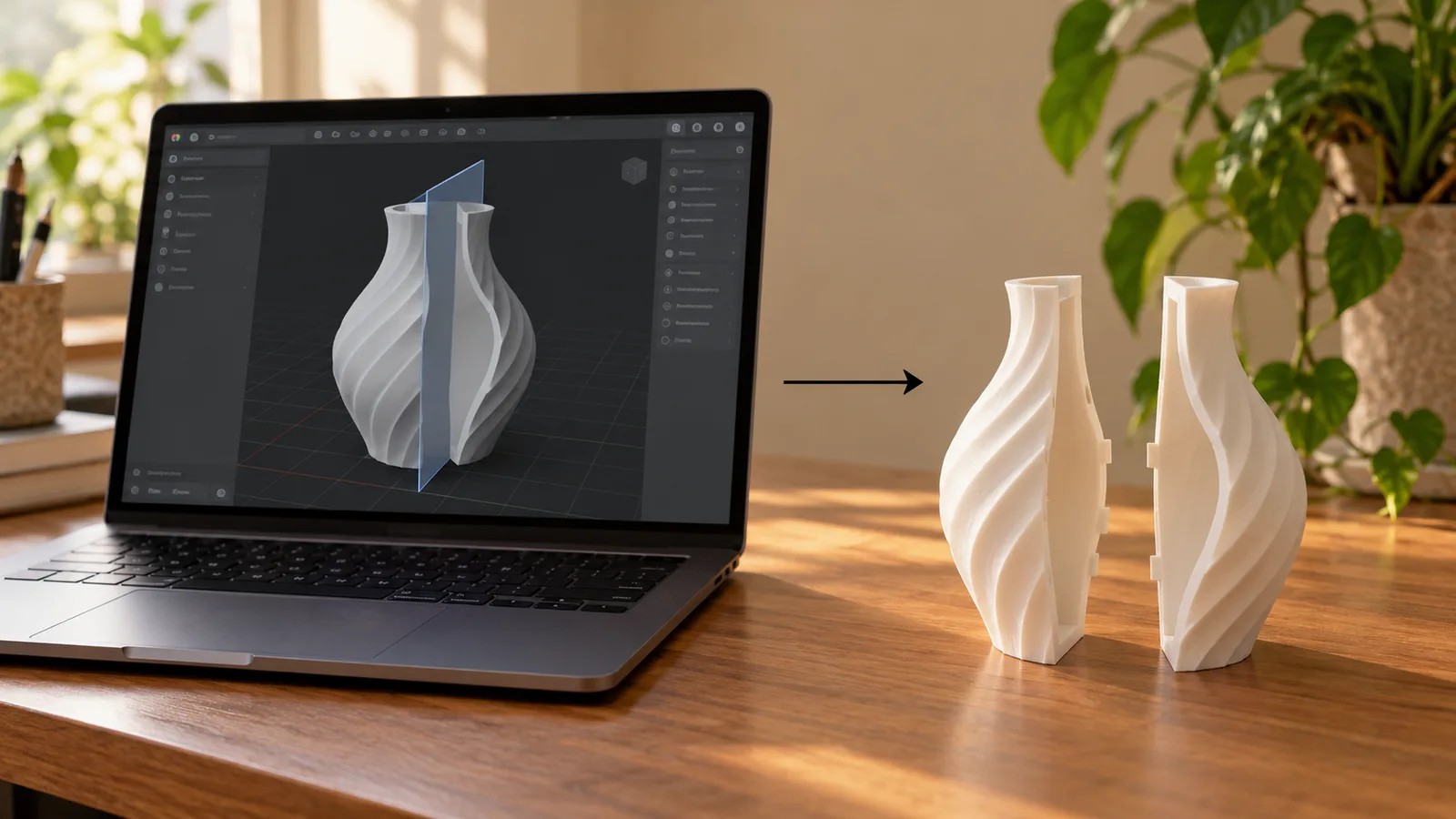
- Cut with a plane at an exact height: keep the bottom, the top or both halves. The cut is closed, so every piece is a solid you can print.
- Select faces by clicking (flat areas grow automatically up to an angle you set) and delete them, for example to open a vase or remove a stand.
- Merge several STL files into one solid, or add a round or square base under a figurine.
- Undo and redo every step with Ctrl or ⌘ + Z.
How to edit an STL file, step by step
- Drop one or more STL, 3MF, OBJ or STEP files onto the editor. Each becomes a part on the plate, in millimetres with Z up, the way slicers see it.
- Pick a part in the list, then choose a tab: Move, Rotate, Scale, Cut, Faces or Base. Type the numbers you want; the viewer updates right away and keeps your camera angle.
- Watch the print check. If an edit such as deleting faces leaves holes, the part shows open edges and a Repair button rebuilds a closed solid at the same size.
- Download STL for any slicer, or 3MF to keep parts as separate objects for Bambu Studio, PrusaSlicer or Orca.
Why a browser STL editor instead of Blender or Meshmixer
Blender can do everything, but resizing a part to exactly 42 mm or cutting it in half for printing takes a dozen steps and a modifier stack. Meshmixer is no longer developed. Most online editors upload your file to a server, add a queue or a watermark, or limit the file size.
MeshShift runs the same kind of geometry engine (manifold-3d, compiled to WebAssembly) in your own browser tab. Cutting and merging produce true closed solids, not overlapping shells, and nothing leaves your device, which matters for client parts and unreleased designs. There is no daily limit and no sign-up.
Limits worth knowing
An STL is a surface made of triangles, so the editor changes triangles: it cannot bring back the sketches, dimensions or fillets of the original CAD model. For parametric changes, edit the source in your CAD program and export again.
Cut, merge and base need a closed solid. If a file has holes, the editor says so and offers Repair first; repair keeps the size but can soften details smaller than its voxel size. Very dense scans (several million triangles) work but take a few seconds per boolean step on an average laptop.
Frequently asked questions
Is this STL editor free?
Yes. Every tool in the editor, including cut, merge, base, repair and STL or 3MF export, is free with no sign-up and no watermark. It runs in your browser, so it costs us nothing per file and there is no daily limit.
Is my STL file uploaded?
No. The file is read, edited and written inside your browser tab with JavaScript and WebAssembly. You can check in your browser's network panel that nothing is sent while you edit.
How do I resize an STL to an exact size in mm?
Open the Scale tab and type the width, depth or height you want in millimetres. With "Keep proportions" on, the other two sides follow; turn it off to stretch one axis. If the model came in 25.4 times too small, it was saved in inches; the "in → mm" button fixes that.
Can I cut an STL in half for printing?
Yes. In the Cut tab choose the plane and position, then keep the bottom, the top or both. The cut face is closed, so both halves are solids that slice correctly, and the top half is laid next to the bottom half on the plate.
Can I combine several STL files into one?
Yes. Drop all of them, arrange them with Move, then press "Merge all into one". Overlapping parts are fused into one closed solid. If you want them to stay separate objects instead, skip the merge and export 3MF.
Can I edit the original CAD features of an STL?
No. An STL only contains triangles, so features such as fillets, holes with a set diameter or sketches no longer exist in the file. The editor can move, scale, cut, delete and combine geometry, but parametric changes need the original CAD file.