Photo to 3D Model, Ready for Your Printer
Upload one picture and get a watertight STL or 3MF with a base, scaled to the exact height you type. Made for 3D printing, not for game engines.
Sign in with Google → first model free. Failed runs refund automatically.
Your print-ready model appears here
Closed, manifold, flat-bottomed, on a base, and exactly the height you set.
How photo to 3D works, step by step
- Pick a photo. A single subject, evenly lit, against a plain background works best. Side and back views help when the engine accepts several angles.
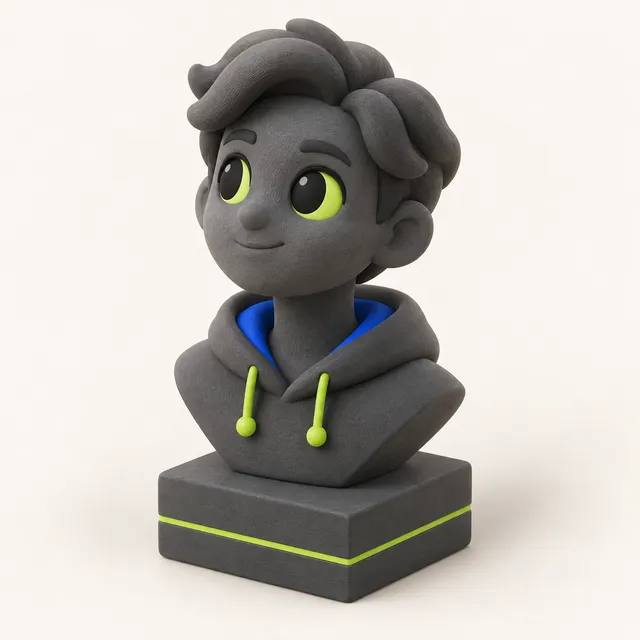
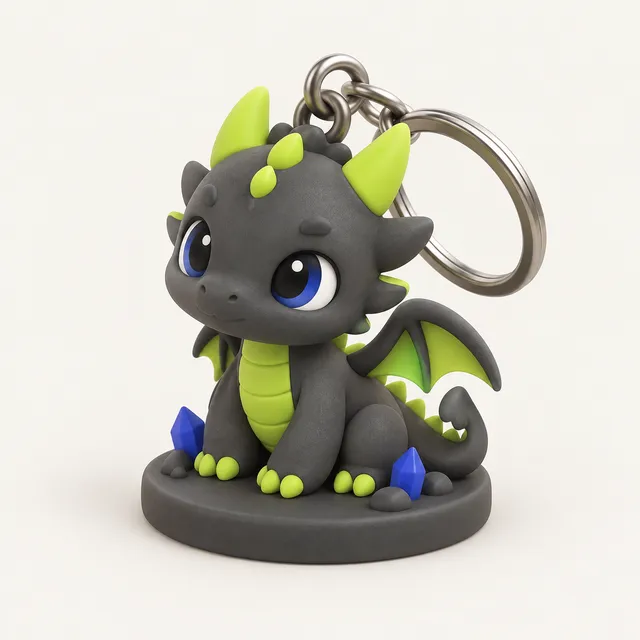
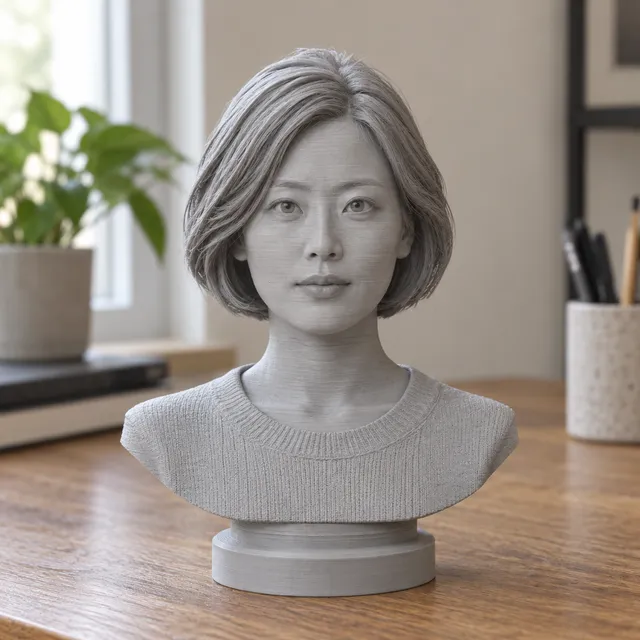
- Pick a template. Figurine adds a round, oval or square base under a full-body model. Bust cuts the head and shoulders flat and sets them on a plinth. Keychain makes a flat-back charm with a keyring loop that prints without supports. Plain gives you the model with a flattened bottom and nothing else.
- Type the height in mm and generate. The AI step takes about one to two minutes.
- Inspect and adjust. You can change template, height, base and hollowing on the finished model as often as you like without spending more credits. Then export STL or 3MF.
What makes a model printable, and what we fix for you
An AI-generated mesh that looks fine on screen often fails in a slicer. Typical problems are open holes, overlapping shells, tiny floating fragments, no flat surface to stand on and an arbitrary scale. Many AI generators leave those fixes to you (in Blender or as paid extra steps).
MeshShift runs the print prep automatically after every generation: the mesh is rebuilt as one watertight, manifold solid; loose crumbs are deleted; the bottom is flattened; a base is added; the model is scaled to your height; and the triangle count is kept at or below 500,000 so slicers stay responsive. For resin printers you can hollow the model and add a drain hole to save resin and reduce suction forces.
Photos that give the best results
- Show the whole subject, with nothing cropped at the edges.
- Use soft, even light. Hard shadows can be read as shape.
- Choose a plain background with good contrast to the subject.
- Shoot straight on at roughly the subject's mid-height, not from far above.
- Avoid motion blur, heavy filters and reflections from glass or shiny metal.
Pets, toys, sculptures and people in simple poses usually work well. Transparent objects, thin wire structures and crowds do not. If the first result misses something important, a second photo from a slightly different angle often does better than editing the same one.
Slicer settings for AI figurines
For an FDM figurine 60 to 100 mm tall, a 0.4 mm nozzle with 0.12 mm layers shows facial detail well. In Bambu Studio or OrcaSlicer use tree supports with the overhang threshold around 30 to 40 degrees; in PrusaSlicer, organic supports do the same job; in Cura, tree supports with a 2 mm branch diameter. Two or three walls and 10 to 15 % infill are enough for a display piece.
On resin printers, hollow with a 2 mm wall, keep the drain hole near the base and tilt the model 20 to 30 degrees in Chitubox or Lychee before adding supports. Use the overhang highlight in the MeshShift viewer to see where supports will go before you open the slicer.
Pricing, privacy and refunds
One AI model costs 10 credits. Credit packs are one-time purchases with no subscription: $4.99 for 40 credits (4 models), $9.99 for 100 credits (10 models) and $24.99 for 300 credits (30 models). Signing in with Google gives 10 free credits, enough for one model. If a generation fails, the credits are refunded automatically, and unused packs can be refunded within 14 days if no credits were spent.
Your photos are used only to create your model, never stored by MeshShift (it is discarded right after it is sent to the 3D model), never used for training and never made public. Finished models stay in My models for 30 days. Only upload photos you have the right to use.
Frequently asked questions
Can AI make a 3D model from one picture?
Yes. The AI predicts the full shape from a single front view, including sides and back it cannot see. The front usually matches the photo closely; the back is a plausible guess. If you have side or back photos, adding them when the engine supports multiple angles improves accuracy.
Is the downloaded model ready to print without Blender?
That is the goal of the automatic print prep. Every model is rebuilt as a single closed, manifold solid with a flat bottom and base, scaled to your height. You can drop the STL or 3MF straight into your slicer, add supports and print.
How big can I print it?
You choose the height in millimetres and the model is scaled to it within 1 %. Detail is limited by the AI mesh, not by size, so very large prints over about 200 mm can show softer surfaces. For small prints under 40 mm, the Keychain or Bust template keeps features thick enough to print.
Can I change the size or base after generating?
Yes. Template, height, base and hollowing can be changed on a finished model as many times as you like, with no extra credits. Only generating a new model from a new photo or prompt costs credits.
What happens to my photo?
It is used only to create your model; MeshShift never stores it — it is discarded right after it is sent to the 3D model. It is never used to train AI and never shown publicly. The generated model stays in your My models list for 30 days so you can download it again.