Roblox AI model generator
Upload a picture (or type a prompt) and get a 3D model that imports into Roblox Studio as one MeshPart: under the 20,000-triangle limit, scaled in studs, with an FBX and an OBJ in one ZIP. 1 free model a day, download included; more models from $4.99 for 3 ($2.99 for one if you have not made a model yet).
Roblox AI model generator: picture or prompt in, an AI 3D model out, simplified to your triangle budget (Roblox max 20,000 per MeshPart), scaled in studs, centred with Y up, optional texture from your picture. Download FBX + OBJ/MTL/PNG in one ZIP with import steps. 1 free model a day, download included; more models from $4.99 for 3 ($2.99 for one if you have not made a model yet).
Next model $4.99, no account needed. Failed runs refund automatically.
Your print-ready model appears here
Closed, manifold, flat-bottomed, on a base, and exactly the height you set.
In short: To make a Roblox model with AI, upload one picture of a single object or character on this page, or describe it in a sentence. The AI builds a full 3D model in about two minutes.
Under the result, the Roblox export step simplifies the mesh to your triangle budget (2,000 to 20,000; Roblox allows at most 20,000 triangles per MeshPart), sets the height in studs, centres it with Y up, and can wrap your picture on it as a texture. A live checklist shows triangles, size in studs, units and texture, and turns to "Roblox ready" when every line passes. Download a ZIP with the FBX (texture embedded), an OBJ with MTL and PNG, and the four Studio import steps, then use Import 3D in Roblox Studio. 1 free model a day, download included; more models from $4.99 for 3 ($2.99 for one if you have not made a model yet); the Roblox checklist and 3D preview are free for every model. MeshShift is not affiliated with Roblox.
How to use the Roblox AI model generator
- Upload one picture of the object or character, or switch to From text and describe it.
- Wait about two minutes while the AI builds the 3D model.
- In Roblox export, pick a triangle budget (10k is a good default) and the height in studs.
- Check the Roblox ready list: triangles under 20,000, size in studs, Y up, texture.
- Download the ZIP and import the FBX in Roblox Studio with Import 3D.
| Roblox requirement | MeshShift Roblox export |
|---|---|
| Triangles per MeshPart (max 20,000) | Simplified to 2k / 5k / 10k / 20k, your choice |
| Units | 1 unit = 1 stud; height set in studs |
| Axis and pivot | Y up, centred on the origin |
| Size per axis (max 2,048 studs) | Checked in the Roblox ready list |
| File for the 3D Importer | FBX (texture embedded) + OBJ/MTL/PNG |
| Texture | Optional 1024 px PNG front-projected from your picture |
| Input | One picture (JPG, PNG, HEIC) or a text prompt |
| Price | 1 free model a day, download included; more models from $4.99 for 3 ($2.99 for one if you have not made a model yet) |
Why AI models usually fail in Roblox Studio, and what this page fixes
Most AI 3D generators hand you a mesh made for rendering, not for a Roblox game. Three things then go wrong in Studio:
- Too many triangles. A raw AI model is often 40,000 to over 200,000 triangles; Roblox refuses a MeshPart above 20,000, and dense meshes cost memory on phones even below the limit.
- Wrong size. Generators export in metres or arbitrary units, Roblox measures in studs (one stud is about 28 cm), so the model arrives as a speck or a giant.
- Off-centre pivot and wrong axis, so the part rotates around a point in the air.
The Roblox export step fixes all three in your browser: it simplifies the mesh with meshoptimizer to the budget you pick, scales the height to the studs you set, centres the pivot and keeps Y up. We tested it on real AI outputs: a 215,758-triangle model came out at 20,000 and a 40,000-triangle one at 10,000, and both reloaded in an FBX and an OBJ reader with the same triangle count.
Triangle budget: how low can you go
Pick the lowest budget that still reads well in your game:
- 2k: props seen from afar, collectibles, foliage, mobile-heavy games.
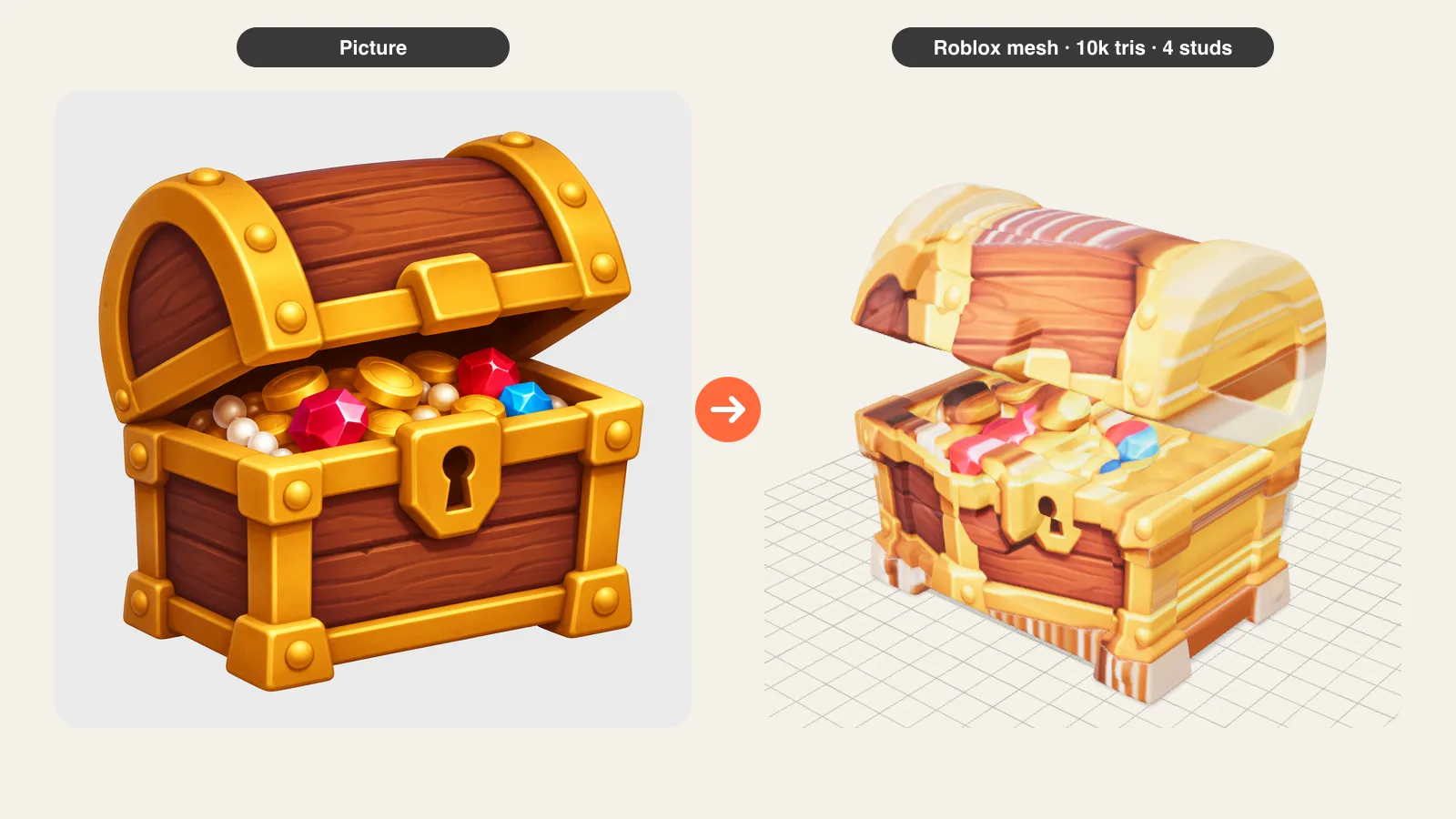
- 5k: everyday props such as chests, lamps, crates, signs.
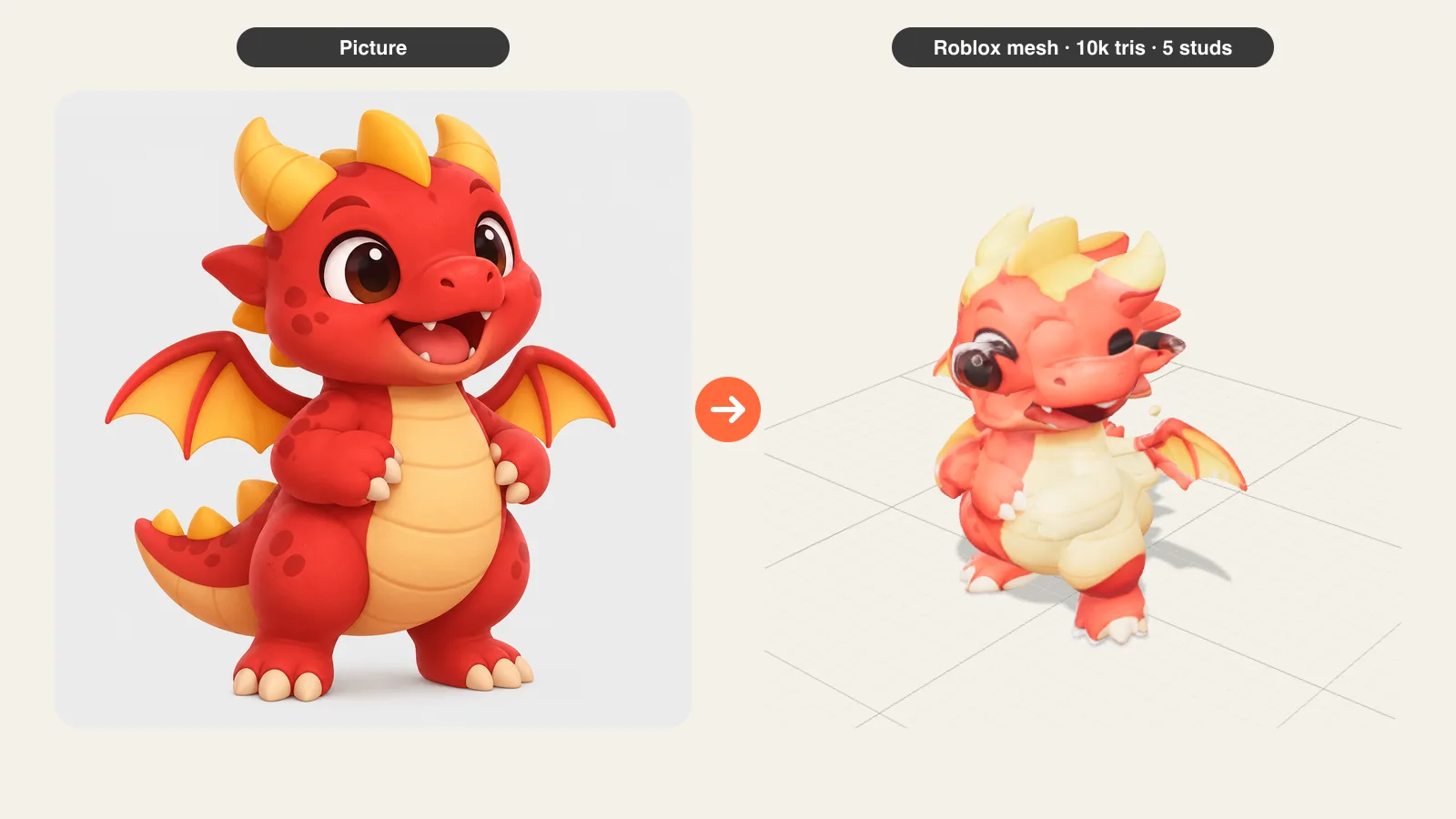
- 10k (default): pets, characters and hero props seen up close.
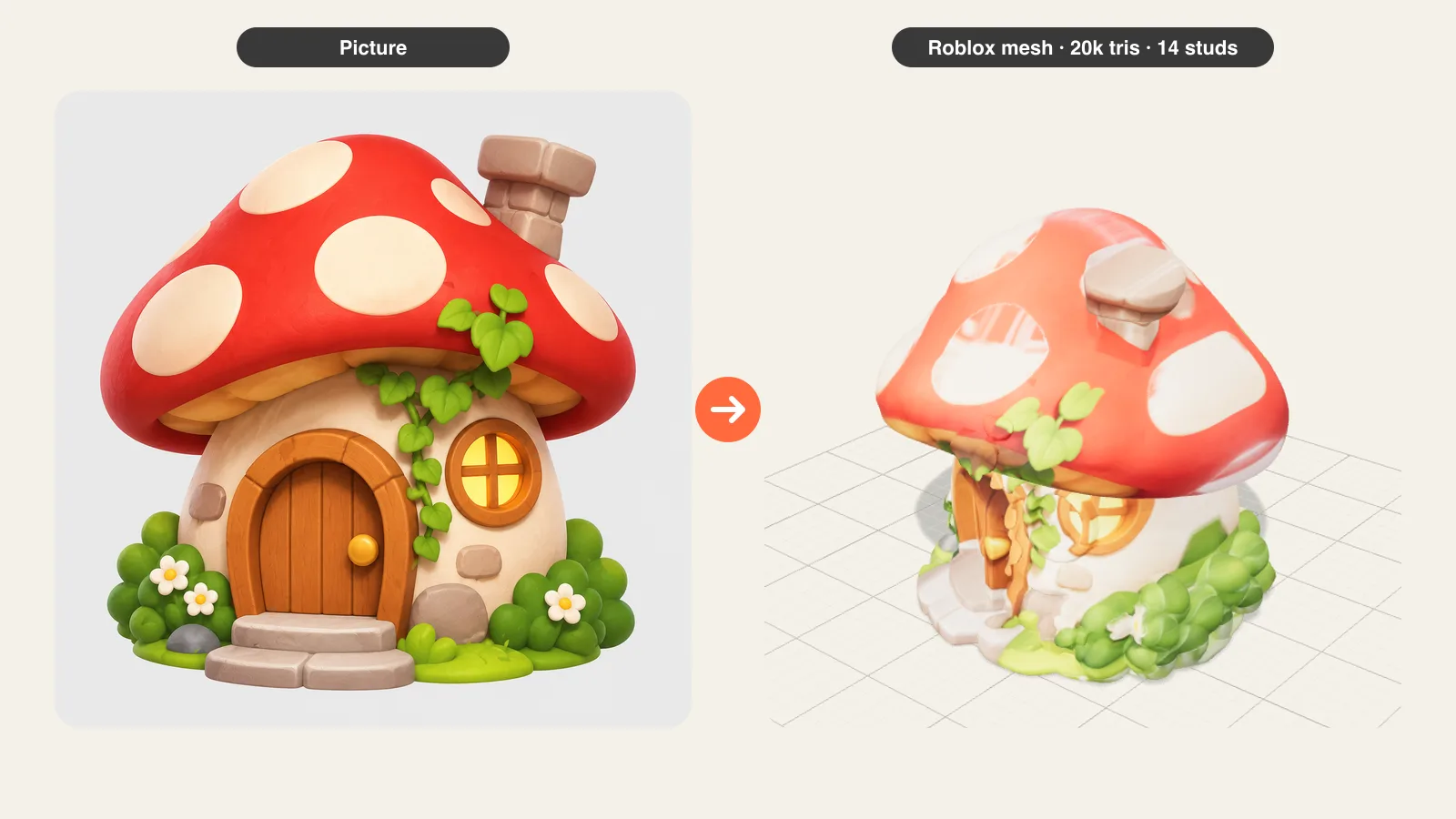
- 20k: the Roblox maximum, for a showpiece. Avoid many of these in one place.
The preview next to the checklist shows the simplified mesh, so you can step down until the shape starts to lose detail and step back up once.
Size in studs and Roblox scale
Set the height with the slider; width and depth follow the model's proportions. Useful references: a default avatar is about 5 studs tall, a door is about 7, a one-storey house about 12 to 16. The file is written so that one unit equals one stud, so in the 3D Importer keep the file dimensions on Studs and the part arrives at the size you chose. You can still resize the MeshPart in Studio afterwards; the shape scales evenly.
Texture: what you get and its limits
The AI model itself is geometry. When you start from a picture, the export can wrap that picture onto the model as a texture: the subject is cropped, saved as a 1024 px PNG and projected from the front. The front looks like your picture; the sides and back reuse the same colours stretched across, which works well for chunky, colourful game props and is less convincing for detailed characters seen from behind.
If you prefer, untick the texture and colour the MeshPart in Studio with Color and Material, which keeps the classic Roblox look. Models made from a text prompt have no texture.
How to import the model into Roblox Studio
- In Roblox Studio, open your place and choose Import 3D (Home tab, or File > Import 3D).
- Pick the .fbx from the ZIP; in the importer check that File Dimensions is set to Studs, then Import.
- The model arrives as a MeshPart with the texture applied; anchor it or weld it to your build.
- If the texture is missing, select the MeshPart and set its TextureID by uploading the PNG from the ZIP.
The OBJ, MTL and PNG in the same ZIP are the same mesh for Blender or other tools.
What makes a good picture for a Roblox model
One object, fully in frame, on a plain background. Chunky shapes with few thin parts become clean low-poly meshes: chests, pets, mushrooms, furniture, weapons, vehicles, mascots. Concept art and game-style renders work as well as photos. Avoid group shots, cut-off subjects and text-heavy images. For characters, a front view with arms slightly away from the body gives the cleanest result. Use only pictures you have the rights to, and not other people's characters or brands.
Frequently asked questions
Is the Roblox AI model generator free?
Your first AI model each day is free to make, preview and download, including the Roblox ZIP. More models are one-time packs: $4.99 for 3 ($2.99 for one if you have not made a model yet), no subscription. The Roblox checklist and preview are free for every model.
What is the triangle limit for a Roblox MeshPart?
20,000 triangles per MeshPart. The export step simplifies the AI model to the budget you choose (2k, 5k, 10k or 20k), so it is always at or under the limit.
Which file format should I use for Roblox?
FBX: Roblox Studio's 3D Importer reads it with the texture embedded. The ZIP also has an OBJ with MTL and PNG, which Studio imports too and Blender opens directly.
Can I make a Roblox model from text instead of a picture?
Yes. Switch the studio to From text, describe the object (for example "a wooden treasure chest, chunky shapes") and the same Roblox export step appears under the result. Text models come without a texture; colour them in Studio.
Is the model rigged or animated?
No. The export is a static MeshPart: props, pets that you animate with tweens, buildings, decorations. Rigged avatars and layered clothing need a cage and a skeleton that this tool does not create.
Can I sell or use the model in my Roblox game?
The terms let you use models you create for personal and commercial purposes, including in your games, subject to the rights in the picture you upload. Other companies' characters and brands stay theirs.